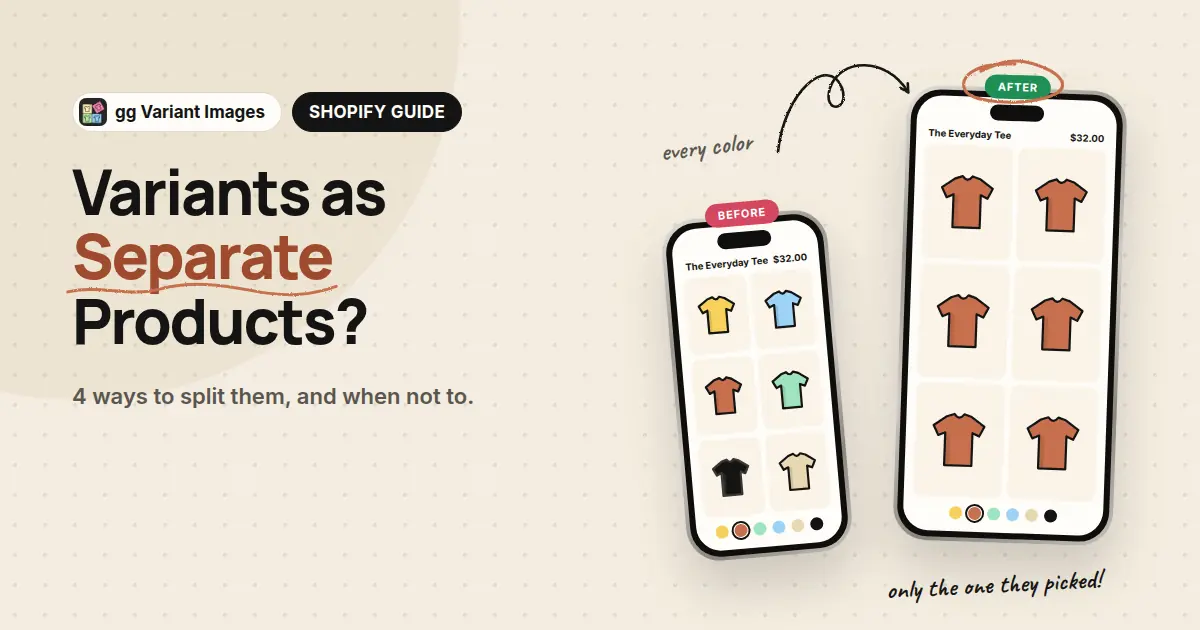
Trying to make Shopify show variants as separate products usually starts on a collection page: you sell one jacket in six colors, yet the collection grid shows only a single thumbnail and shoppers never see the other five colors unless they click through. Shopify natively treats every collection at the product level rather than the variant level, so you have to choose between splitting your catalog, changing how your collection grid renders variants, or keeping one product with cleaner swatches and galleries. This guide breaks down all four approaches and helps you decide when splitting is worth the maintenance.
Quick answer: You can make Shopify show variants as separate products by creating standalone products linked with swatches, using Shopify Combined Listings (Shopify Plus only), installing a collection-variant display app, or editing your collection Liquid template. However, if your real goal is giving every color its own clean photo gallery without duplicating products or splitting reviews, keep your colors as standard variants and install gg Variant Images (Free plan covers 1 product, zero theme edits).
Before changing your catalog structure, clarify what you actually need: more cards on collection pages, separate URLs and descriptions per color, or clean per-color galleries on the product page. Each goal calls for a different setup.
Comparing 4 ways to make Shopify show variants as separate products
| Method | Collection cards per color | Separate URLs & SEO copy | Keeps reviews & inventory unified | Theme code needed | Best for |
|---|---|---|---|---|---|
| Separate products + sibling swatch links | Yes (native) | Yes | No (split across products) | Metafield/theme setup or linking app | Brands wanting standalone pages and distinct copy per color |
| Shopify Combined Listings (Plus only) | Optional (child products) | Yes | Partial (separate child SKUs) | Compatible theme | Shopify Plus catalogs on Online Store only |
| Collection-grid variant loop (Liquid or app) | Yes (visual cards linking to ?variant=ID) | No (1 canonical product URL) | Yes | Yes (Liquid edits) or app | Small catalogs wanting fuller collection grids from 1 product |
| Keep standard variants + gg Variant Images | 1 card per product (optional swatches) | No (consolidated authority) | Yes (single SKU group & reviews) | None (app embed) | Stores wanting clean per-color galleries and swatches without catalog bloat |
4 ways to make Shopify show variants as separate products
1. Create separate products per color and link them as siblings
The cleanest way to make Shopify show variants as separate products in collections, search, and filters is to create each colorway as its own Shopify product (for example, Everyday Hoodie – Forest and Everyday Hoodie – Sand), keeping only Size as the variant option inside each product.
- Pros: Native pagination, sorting, and collection filters work accurately. Each color gets its own title, description, URL handle, and photo gallery automatically.
- Cons: You must link sibling products together on the product page using theme metafields or a product-grouping app so shoppers can switch colors. You also duplicate price updates, size charts, and product copy across every colorway, and standard review apps split reviews unless configured to group them.
2. Use Shopify Combined Listings (Shopify Plus only)
If your store is on Shopify Plus, Shopify’s native Combined Listings app lets you keep each colorway as a standalone child product while presenting them under one parent product switcher. Because each child is a real product, you get separate URLs and galleries per color, though Combined Listings is restricted to Shopify Plus and the Online Store channel (no Shopify POS or subscriptions). Read our full breakdown of Shopify Combined Listings vs variants before committing to it.
3. Loop variants inside your collection grid with custom Liquid
Developers sometimes edit the collection template to loop through product.variants inside the collection.products grid so one product outputs a separate card for each color, linking each card to its ?variant=ID URL.
Before taking the custom Liquid route to have Shopify show variants as separate products, check the platform limits documented in Shopify’s Liquid paginate tag reference:
- Uneven pagination counts: Shopify paginates
collection.products(1 to 250 products per page), not individual variants. If your collection paginates by 16 products and each item has 4 colors, page 1 renders 64 cards while a page with single-color items renders 16. - Product-level filtering and sorting: Native collection filters and sort orders evaluate the whole parent product. Filtering by “Green” can still pull in a product and accidentally render its Red, Black, and Navy variant cards unless your custom Liquid filters every variant loop carefully.
- Theme update overhead: Custom edits to product-card snippets have to be carried over every time you update your theme.
4. Use a collection-variants app (keep one product in admin)
If you have a small catalog (say, 5 flagship jackets in 6 colors each) and want collection grids to feel fuller without duplicating products in Shopify admin, a collection-variant display app expands color options into visual cards on collection pages while pointing every click back to the single product’s ?variant=ID URL. Your inventory, reviews, and product copy stay in one place, though you still need clean product-page gallery filtering once the shopper lands on that variant URL.
When NOT to make Shopify show variants as separate products
Many merchants search for how to make Shopify show variants as separate products when splitting their catalog is actually the wrong move. Avoid splitting variants into separate products if:
- Your main complaint is a messy product gallery. If shoppers click “Olive” on your product page and see 25 photos of every other color mixed together, splitting one product into eight products is overkill. Our guide on showing only selected variant images on Shopify explains how to solve this directly on a single product.
- Every color shares the same search intent. Splitting “Classic Cotton Tee” into 10 near-identical product pages with the same description dilutes internal links, reviews, and backlinks across 10 thin URLs instead of concentrating authority on one strong page.
- You have a large catalog. Turning 80 multi-color products into 600 separate products turns routine price, fabric, or shipping updates into spreadsheet work and clogs collection pages with repetitive rows.
- Shoppers just need to see available colors clearly. Adding visual color swatches in Shopify makes every colorway easy to spot without multiplying your product count.
Keep one product and clean per-color galleries with gg Variant Images
When all your colors belong on one product page, gg Variant Images gives shoppers the clean, color-specific product experience merchants hope for when they try to make Shopify show variants as separate products, without duplicating a single SKU.
- Dedicated gallery for every color: Selecting a variant filters the product gallery to show only the photos assigned to that option, while keeping shared images (size charts, fabric closeups, lifestyle shots) visible across every colorway.
- Works when linking directly to
?variant=URLs: Whether shoppers click a color swatch on your product page or land directly from a?variant=collection card, ad, or email link, the gallery opens filtered to that exact color. - Built-in color and variant image swatches: Display solid colors, two-tone splits, or automatic variant photo swatches (circle, rounded, square, or polaroid cards) so every color stands out clearly.
- AI auto-assign and zero theme edits: Organize multi-color catalogs in seconds with AI auto-assign or drag-and-drop ordering. Everything runs through Shopify’s theme app embed, with a Free plan covering 1 product and an Unlimited plan at a flat $15/mo on every Shopify plan.
How to set it up in five minutes
- Install gg Variant Images from the Shopify App Store.
- Enable the gg Variant Images app embed in Online Store > Themes > Customize > App embeds and click Save.
- Open Variant images (or Bulk assign) inside the app and assign each color’s photos using AI auto-assign or drag-and-drop. Leave universal size charts and lifestyle photos unassigned so they stay visible for all variants. See our complete guide on how to add variant images on Shopify for step-by-step gallery tips.
- Optionally open Swatches to style solid, two-tone, or image swatches on your product pages.
- Preview a live product page and test switching colors (and opening a
?variant=link) to verify the gallery filters cleanly.
Running a custom theme or unique product layout? Send us the URL and our support makes the app work for your theme as soon as possible.
Frequently asked questions
Can Shopify show variants as separate products natively?
No. Shopify natively displays one card per product in collection grids and does not include a built-in toggle to make Shopify show variants as separate products. To display each color as its own collection card, you must either create separate products per color (linked via metafields, a grouping app, or Shopify Combined Listings on Plus), edit your collection Liquid template, or use a collection-variant display app.
Does splitting variants into separate products hurt Shopify SEO?
It depends on how buyers search. Creating separate products helps SEO when each color or style has unique search demand and distinct product copy. When colors share the same description and target the same keyword, making Shopify show variants as separate products can create near-duplicate pages and split reviews and backlinks that would rank better consolidated on one product URL.
What is the best alternative if I only want separate photo galleries per color?
Keep all colors as standard variants on one Shopify product (Shopify supports up to 2,048 variants across 3 options) and install gg Variant Images. Shoppers get a clean, dedicated photo gallery for each color plus shared size charts and optional color or image swatches, without duplicating products or breaking collection pagination.
—