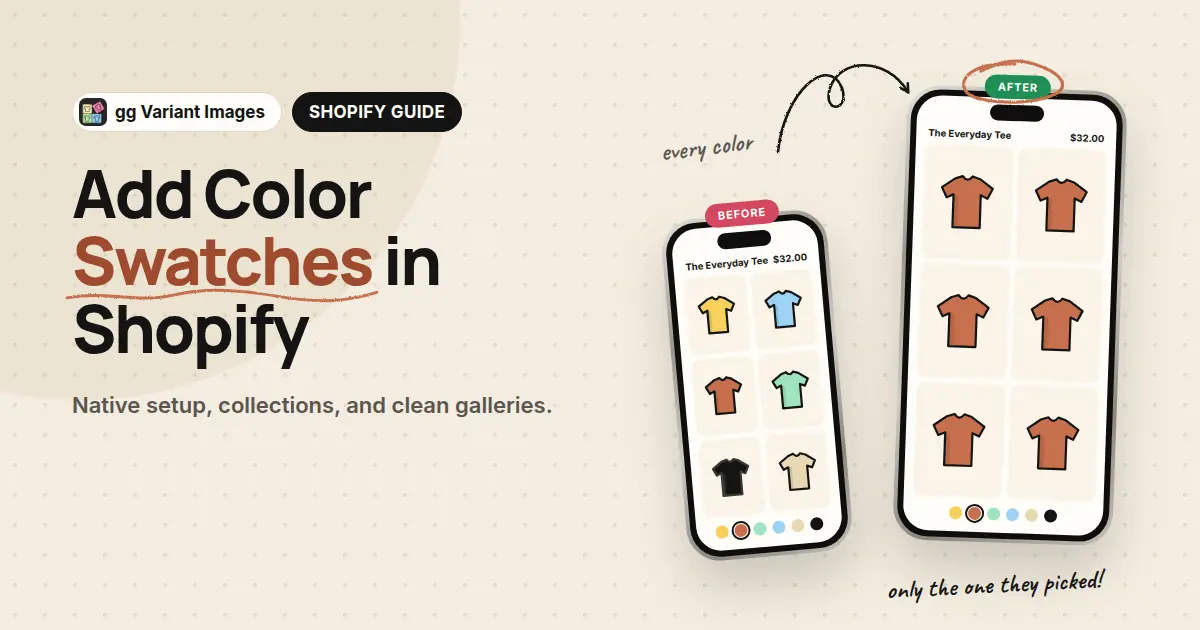
Adding color swatches in Shopify replaces plain text pills like “Forest Green” or “Sand” with visual color chips so shoppers can scan every colorway in a second. Shopify includes a built-in swatch workflow through category metafields, yet many stores still run into limits on styling, collection cards, and cluttered galleries. This guide covers native setup, collection pages, and how to pair swatches with filtered variant galleries.
Quick answer: You can add native color swatches in Shopify for free by assigning a standard product category, linking your Color option to Shopify’s Color category metafield, and selecting Circle or Square in your theme’s Variant picker block. If you want variant image swatches, two-tone colors, flexible styles, and product galleries that filter to only the selected color’s photos, install gg Variant Images (Free plan covers 1 product, zero theme edits).
Before changing your catalog, separate three goals merchants often combine when setting up color swatches in Shopify: product-page swatches, collection-page filters vs product cards, and gallery filtering after a shopper clicks a color.
Comparing 3 ways to add color swatches in Shopify
| Approach | Product-page swatches | Collection pages | Filters gallery per color | Theme edits | Best for |
|---|---|---|---|---|---|
| Shopify category metafields (native) | Solid color or swatch image (Circle or Square in Dawn) | Sidebar filter via Search & Discovery; card swatches vary by theme | No (shows all colors together) | None on OS 2.0 themes | Basic circle or square swatches on compatible themes |
| Custom theme code | Custom CSS and Liquid in variant picker | Needs custom product-card code | No (requires separate gallery code) | Yes (must maintain on updates) | Stores with a developer and bespoke design rules |
| gg Variant Images | Solid, two-tone, and variant image swatches (circle, rounded, square, polaroid cards, labels, presets) | Support-assisted collection swatch setup on paid plan | Yes (per-variant gallery + shared size charts) | None (app embed) | Stores wanting polished swatches plus clean variant galleries |
How to add color swatches in Shopify natively (category metafields)
Shopify’s built-in method ties color swatches in Shopify to its Standard Product Taxonomy rather than plain text option names. Follow the five steps from Shopify’s guide to adding color swatches using category metafields:
- Assign a standard product category. In your Shopify admin, open Products, pick a product, and choose a Category with a Color attribute (such as Apparel & Accessories > Clothing > Clothing Tops > Shirts). Click Save.
- Edit or add Color entries. Under Category metafields, open Color. Use default entries, rename a color to match your brand (for example, changing “Black” to “Graphite”), or click Add new entry to set a hex code or upload a texture image. Editing a shared entry updates it everywhere it is linked.
- Connect the Color metafield to variants. Under Variants, click + Add options like size or color and pick the Color category metafield. For an existing text Color option, click the option, click the dynamic source icon, and connect it to Color. Save the product.
- Enable swatches in the Theme Editor. Open Online Store > Themes > Customize (or Edit theme), navigate to your product template, and click the Variant picker block. Pick Circle or Square and click Save.
- Check desktop and mobile. Preview the product page to verify your color swatches in Shopify display cleanly and update the selected variant.
Native swatches require a theme that supports Shopify’s swatch object. Older or custom themes keep displaying text pills even after category metafields are connected.
Collection page color swatches in Shopify: filters vs product cards
When merchants look for collection-page color swatches in Shopify, they usually mean one of two separate features:
1. Color swatch filters in the collection sidebar
Shopify’s free Shopify Search & Discovery app adds visual color filters using your Color category metafield:
- Open Shopify Search & Discovery, go to Filters > Add filter, and click + Select source.
- Select Color (type: Category metafield).
- Open Manage values and enable Include swatch (plus Use images when available for uploaded patterns).
- Save and confirm filtering is enabled in your theme’s collection section.
Per Shopify’s Search & Discovery docs, stores can add up to 25 filters total, each filter shows up to 100 values, and collections with over 5,000 products do not show storefront filters.
2. Clickable color swatches on collection product cards
Clickable swatches under each product card in a collection grid depend on your theme, not Search & Discovery. Free themes like Dawn render native category-metafield swatches on product pages rather than collection cards out of the box (see our Dawn variant images guide). Some newer and paid themes include a card-swatch toggle in Theme Settings; otherwise, you need custom card code or an app.
Where native color swatches in Shopify fall short
Native category metafields work for simple catalogs, yet most apparel, footwear, jewelry and home-goods stores quickly hit four limits:
- The gallery still shows every color’s photos. Clicking a “Navy” swatch jumps to Navy’s single variant image, while every Red, Olive and Cream photo stays mixed into the gallery. Our guide on showing only selected variant images on Shopify explains why Shopify behaves this way.
- Taxonomy overhead. Niche products without a Color category attribute, or stores using options like “Finish”, “Metal”, or “Wood Grain”, require extra metafield setup to display color swatches in Shopify natively.
- Minimal styling. Built-in theme controls usually cap you at plain circles or squares, without two-tone splits, variant-photo cards with labels, or mobile swatch carousels.
- Combined Listings is Plus-only. Some merchants compare Shopify Combined Listings vs variants hoping to solve swatches and galleries together, but Combined Listings requires Shopify Plus and supports Online Store only.
Adding color swatches in Shopify with gg Variant Images
If you want flexible color swatches in Shopify and want every click to filter the gallery to only that color’s photos, gg Variant Images handles both in one app with zero theme-file edits.
Instead of running one app for swatches and a second app for galleries, you manage everything together:
- Color, two-tone, and variant image swatches: Render solid fills, two-tone splits, or automatic variant photo thumbnails. Choose square, rounded, circle, polaroid/card frames, pills, radio buttons, or dropdowns, with tooltips, optional text labels, horizontal carousel scrolling, and presets (Minimal, Rounded, Circle, Polaroid, Bold).
- Filtered per-variant galleries: Every swatch click filters the product gallery to only that color’s images while keeping shared photos (size charts, care tags, lifestyle shots) visible across all variants.
- AI auto-assign and fast setup: Assign variant photos in seconds with AI auto-assign or drag-and-drop ordering, and turn on swatches per product or automatically across matching option names.
- No theme edits and clear pricing: Everything loads through Shopify’s theme app embed, so theme updates stay safe. The Free plan covers 1 product (with per-product swatches included), and the Unlimited plan is flat $15/mo on all Shopify plans, with support-assisted collection-page swatch setup on request.
How to set up color swatches in Shopify with gg Variant Images
- Install gg Variant Images from the Shopify App Store.
- Turn on the gg Variant Images app embed under Online Store > Themes > Customize > App embeds and save.
- Open Swatches inside the app, choose solid color, two-tone, or variant image swatches plus your preferred shape preset, and enable swatches on a product or matching option names (such as Color or Finish).
- Open Variant images (or Bulk assign) to assign each color’s photos and keep shared size charts visible on every variant. See our hub guide on how to add variant images on Shopify for gallery best practices.
- Preview your storefront product page and click through each swatch to confirm both the swatches and gallery filter update together.
Using a custom theme or want collection-page swatches matched to your cards? Send us the URL and our support makes the app work for your theme as soon as possible.
Frequently asked questions
Can I add color swatches in Shopify without an app?
Yes. On compatible Online Store 2.0 themes such as Dawn, assign a standard product category, link your Color option to Shopify’s Color category metafield, and choose Circle or Square in the Variant picker block. Native color swatches in Shopify do not filter product galleries to only the chosen color’s photos, and themes like Dawn do not render clickable native swatches on collection cards out of the box.
Why are my color swatches in Shopify not showing up?
Most issues come from one of three causes: your Color option is still a plain text option instead of connected to a Color category metafield via the dynamic source icon, the product lacks a Standard Product Taxonomy category, or your theme does not support Shopify’s swatch picker. Using gg Variant Images removes the category-metafield requirement and runs cleanly through a theme app embed.
Do color swatches in Shopify automatically filter the product image gallery?
No. Shopify’s native swatches only select the variant and jump to its single assigned variant image, leaving all other colors visible in the gallery. Pair your swatches with gg Variant Images so shoppers see only the selected color’s photos plus any shared images like size charts.
—