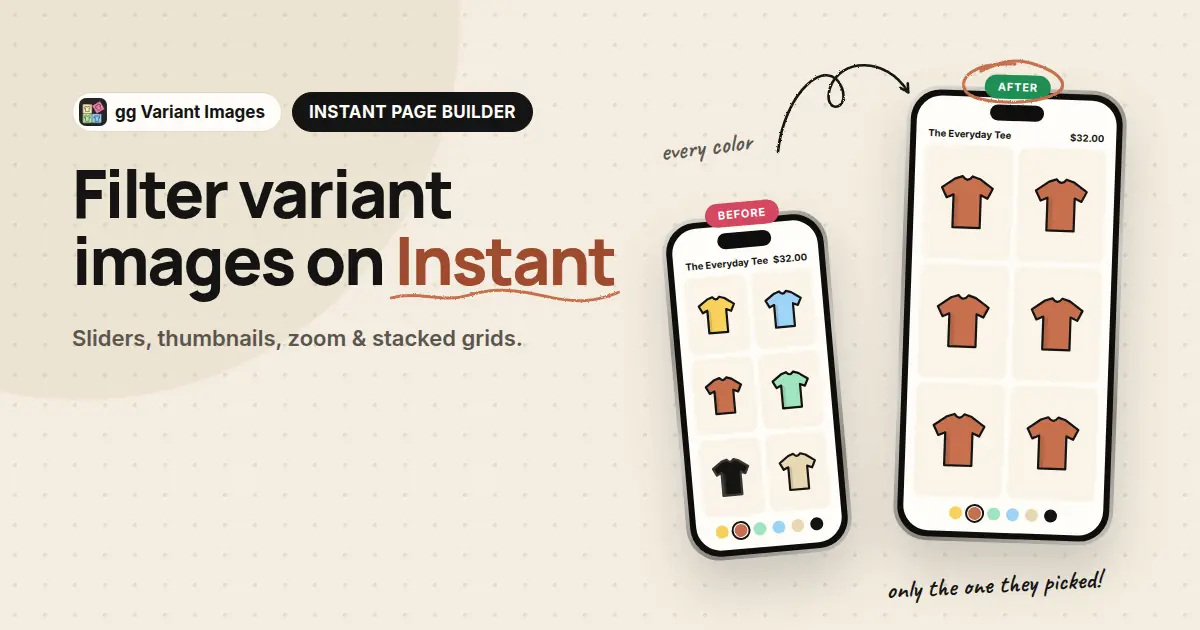
Instant variant images work differently from standard Shopify theme galleries because Instant replaces your theme’s product template with its own storefront layout. Even if your store runs Horizon, Dawn or Prestige underneath, an Instant product page renders Instant’s own sliders, thumbnails, zoom lightboxes and stacked grids. This guide covers how Instant handles product photos on a variant switch, why generic theme tutorials do not work on Instant pages, and the cleanest way to show only the selected color’s photos.
Quick answer: Out of the box, Instant product templates pull Shopify’s full product media list and only swap or jump to each variant’s single featured image, leaving other colors visible in the gallery. To filter Instant variant images cleanly across main sliders, thumbnails, zoom lightboxes and stacked grids without editing code, install gg Variant Images, which supports Instant galleries natively and includes a Free plan for 1 product.
Instant (instant.so) is a visual Shopify page builder used to design custom product detail pages, buy boxes and landing sections. According to Instant’s Product page templates guide, assigning products to an Instant template (or setting it as your default template) replaces your base theme’s product layout while continuing to pull live titles, prices, images and variants from Shopify.
How Instant Page Builder handles Shopify product galleries
Because Shopify only assigns one featured image per variant, Instant’s dynamic product gallery starts with the full list of photos uploaded to the product. Three details make Instant variant images behave differently from standard Shopify themes:
- Instant uses its own gallery layouts. No matter which Shopify theme your store runs underneath, Instant draws its own main slider, thumbnail strip, full-screen zoom view, and stacked or grid image layouts.
- Theme-specific fixes stop applying. Any built-in theme feature (such as alt-text tagging in Maestrooo themes) or copy-paste tutorial written for Dawn, Prestige or Impact only targets that theme’s product section, which Instant replaces when you publish a template.
- Galleries refresh dynamically on variant switches. When a shopper clicks a different color, Instant refreshes its product section and gallery views automatically. Simple one-off scripts meant for standard themes often break, flicker, or let hidden colors reappear right after a color switch.
We saw a similar page-builder boundary on Foxify product pages, where the builder’s own gallery takes over from the underlying Shopify theme.
Comparing your options for Instant variant images
If a jacket comes in four colors with five photos each, shoppers see twenty mixed photos in one gallery by default. Comparing your options for Instant variant images makes the trade-offs clear:
| Method | Hides other colors’ photos | Works across sliders, thumbs, zoom & grids | Keeps all colors on one product | Best for |
|---|---|---|---|---|
| Default Instant + Shopify featured image | No (all colors stay in gallery) | Switches 1 featured image only | Yes | Products with 1 photo per color |
| Grouped photo order in Shopify admin | No (thumbnails & swipes still show other colors) | Partial (first swipe lands in group) | Yes | Very small catalogs under 5 products |
| Split into separate products per color | Yes (1 color per product page) | Yes | No (duplicate products to manage) | Hero items needing separate SEO URLs |
| gg Variant Images | Yes (filters every gallery view) | Yes (sliders, thumbnails, zoom & stacked grids) | Yes | Multi-color catalogs kept on one product |
If you only have a few products and want a free baseline before adding an app, assign a featured image to every variant in Shopify admin and drag each color’s photos next to one another. Our hub tutorial on how to add variant images on Shopify covers that native setup step by step, and Shopify variant-specific product images explains why manual ordering still leaves mixed thumbnails and swipe bleed.
Filter Instant variant images cleanly with gg Variant Images
gg Variant Images works directly with Instant Page Builder galleries regardless of which base Shopify theme your store uses underneath, with zero theme code edits.
- Works across every Instant gallery layout: filters the main product slider, thumbnail strip, zoom lightbox, and stacked or grid image layouts together whenever a shopper switches colors.
- No flicker or reappearing photos: stays cleanly in sync when Instant refreshes the product section on a color change, including lazy-loaded off-screen photos.
- One-click AI auto-assign and bulk assign: map photos to variants across large multi-color catalogs in seconds, or drag and drop to set the exact display order for every color.
- Shared images stay visible for every variant: leave size charts, fabric close-ups or lifestyle shots unassigned so they show on every color without duplicating files.
- Optional color and image swatches included: keep your Instant variant buttons or dropdowns as designed, or enable customizable square or round color, image and text swatches that hide or cross out sold-out variants. Your image alt text stays untouched for SEO and accessibility.
Setting up Instant variant images in four steps
- Install gg Variant Images from the Shopify App Store. The Free plan covers 1 product so you can test everything on a live Instant template first.
- Open Configure inside the app, pick a product assigned to your Instant template, and use one-click AI auto-assign or drag photos onto each color. Leave universal size charts and lifestyle shots unassigned.
- In your Shopify theme editor, open App embeds, turn gg Variant Images on and click Save. Keep your Instant app embed enabled as well.
- Open the live product page on desktop and mobile and switch variants to confirm the slider, thumbnails and zoom lightbox show only that variant’s photos.
If your Instant template uses a heavily customized layout and something looks off, send us the URL and our support makes the app work for your theme as soon as possible.
What to check on your Instant product page before launching
After publishing your Instant product template and setting up your Instant variant images, test one multi-color product across these five checks:
- Desktop variant switch: click from the first color to the last color and confirm only that color’s photos stay visible after the switch settles.
- Thumbnail count: check that the thumbnail strip matches the exact number of photos assigned to the selected color (plus any shared shots).
- Zoom / lightbox view: open the full-screen image view and swipe through every slide to make sure no other color appears in zoom.
- Mobile swipe and stacked grids: test on a phone screen and, if your desktop template uses stacked image grids instead of a slider, confirm non-matching photos hide cleanly with no blank gaps.
- Direct
?variant=links: open a direct product link for a non-default color to confirm the page loads straight into that color’s filtered gallery.
If the main image does not switch at all even before filtering, check your variant image assignments and picker settings first with our troubleshooting guide on Shopify variant image not changing.
Frequently asked questions
Does Instant Page Builder filter variant images natively?
No. Instant product page templates pull Shopify’s live product media list and each variant’s single featured image, but Instant does not include a built-in multi-image gallery filter that hides other colors’ photos on a single product. To filter Instant variant images across sliders, thumbnails, zoom views and grids, pair your template with gg Variant Images.
Why do standard Shopify variant image snippets fail on Instant pages?
Instant replaces your base theme’s product section with its own page-builder gallery and refreshes it dynamically whenever a shopper picks a variant. Code tutorials written for standard Shopify themes target theme elements that do not exist on Instant templates, whereas gg Variant Images is built to support Instant galleries cleanly without editing code.
Can I keep my existing Instant variant picker when using gg Variant Images?
Yes. gg Variant Images works alongside Instant’s own variant buttons and dropdowns so you can keep your custom Instant design unchanged, or optionally enable gg Variant Images’ square or round color and image swatches.