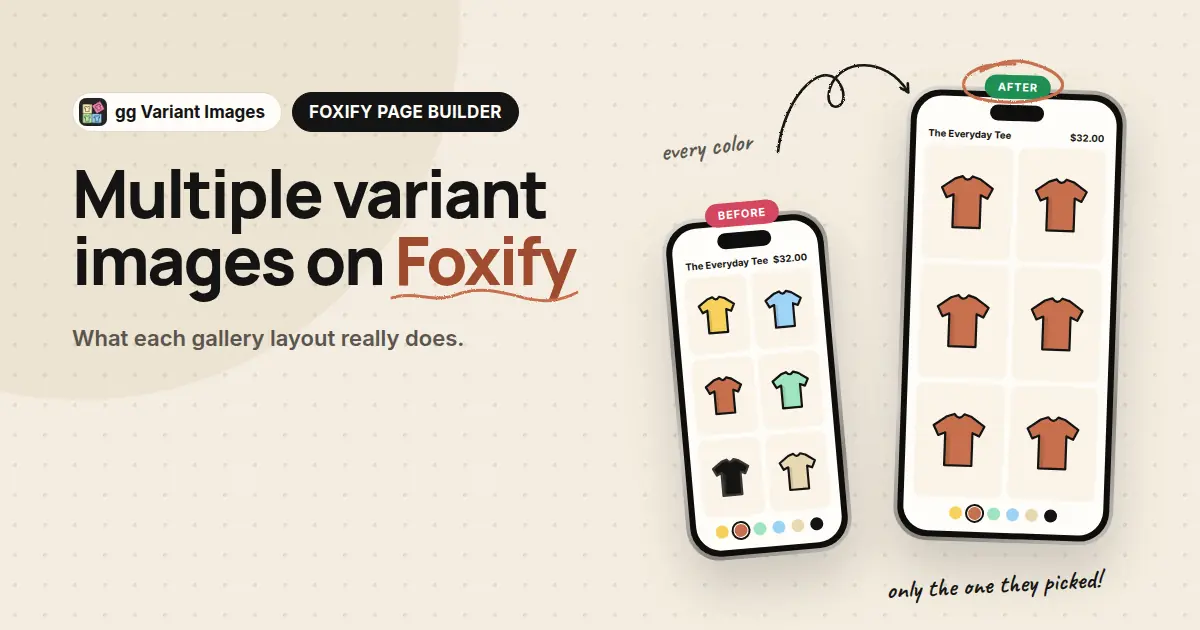
Foxify variant images on Shopify raise a question that Foxify’s product media settings do not answer: when a shopper picks Green, which photos should they see? Foxify shows all of them, for every color, and in three of its four media layouts the desktop gallery does not react to the color at all. This guide covers what each layout does, the free Carousel baseline, and how to show only the selected color’s photos on any Foxify layout.
Quick answer: Out of the box, Foxify variant images are not filtered by color: on desktop only Carousel slides to a single featured image (Stacked, Grid mix, and Grid 2 columns stay still), and every layout keeps all other colors visible. To show only the selected color’s photos across Carousel, Stacked, and Grid layouts without touching alt text, use gg Variant Images, which ships with a dedicated Foxify gallery handler.
Foxify is a page builder by FoxEcom. When you publish a Foxify product page, it replaces your theme’s product page layout for the products you assigned to it. So the gallery on that page is Foxify’s own, and tutorials written for Dawn do not apply to it.
What Foxify does when a shopper picks a color
In Shopify, each variant can point at one image, the variant’s featured image. Foxify’s variant picker reads that image, and what happens next depends on the Media layout you chose in the Product details element.
| Foxify layout / setup | Desktop color switch | Mobile color switch | Hides other colors’ photos | Main trade-off |
|---|---|---|---|---|
| Carousel (default) | Slides to 1 featured photo | Slides to 1 featured photo | No | Other colors stay in slides & thumbnails |
| Stacked / Grid mix / Grid 2 columns | None (gallery stays put) | Slides to 1 featured photo | No | Desktop shoppers see no image change |
Carousel + grouped photos + ?variant= first | Slides to start of color group | Slides to start of color group | No | Swiping past the group still shows other colors |
| gg Variant Images | Shows only assigned photos (all layouts) | Shows only assigned photos | Yes (main gallery + thumbnails) | Free for 1 product, paid plan for full catalog |
- Carousel. The gallery slides to the variant’s featured image. The photo keeps its place in the order.
- Stacked, Grid mix and Grid 2 columns on desktop. Nothing moves. The carousel behind the gallery is turned off on wide screens, and the page does not scroll to the variant’s photo either.
- Every layout on phones. Foxify’s demo pages show one large photo with thumbnails under it on phones, whatever the desktop layout is. There the gallery slides to the variant’s photo, as Carousel does.
- Variants without an image. Nothing moves, in any layout.
In all cases, every photo stays. The other colors’ photos remain in the gallery and in the thumbnails.
We checked this on Foxify’s own demo templates. On the lamp demo, which uses the Stacked layout, picking the second color changes the label next to “Color” and leaves the desktop gallery where it was. The same click on a phone slides to the right photo.
Managing Foxify variant images with built-in settings
Foxify’s Product media settings cover the layout, the ratio, sticky scrolling, the fade effect, video looping, thumbnails and arrows. None of them links a group of photos to a variant. Foxify’s full list is here: Product details element.
Two FoxEcom features are easy to mistake for a Foxify variant images filter:
- Color Swatches. This Foxify extension, on the Starter, Growth and Enterprise plans, changes how an option looks. It does not change which photos show.
- Variant group images in FoxKit. FoxKit, another FoxEcom app, has a feature that shows only the selected variant’s images. Its documentation says it is for Minimog theme users only, on version 3.0.0 or later.
Also keep in mind that a photo filter built into your theme, like Impact’s alt text image sets, belongs to the theme’s product section, which your Foxify page replaces.
The free setup that gets you closest
If you have a handful of products and want a quick no-app baseline, these four steps make Foxify variant images jump to the right color on desktop.
- Give every variant an image. In the Shopify admin, open the product, click a variant and pick its image. A variant without one leaves the gallery where it is.
- Group the photos by color. On the product’s media, drag all the Green photos next to each other, with the featured one first. Shoppers who land on Green then swipe into more Green.
- Use the Carousel layout. In Foxify, select the Product details element, open Product media and set Media layout to Carousel, then save and publish. It is the only layout that reacts to the color on desktop.
- Put the variant first in your links. In the Foxify script we read, a link opens on the variant’s photo only when
?variant=comes right after the page address. If your ad link starts with a tracking parameter instead, the gallery stays on the first photo.
The step by step for the variant image itself is in our guide on how to add variant images on Shopify. If the picture still does not follow the color, work through Shopify variant image not changing.
Where that setup stops
Grouping the photos helps the first swipes, but it does not give each color its own gallery.
- Thumbnails still show every color. A shirt in five colors with five photos each has 25 thumbnails.
- Swiping leaves the color. One swipe past the last Green photo is the first photo of the next color.
- You lose the other layouts. Stacked and grid galleries look good on a long product page, and they are the ones that stay still.
From there you can either split every color into a separate product and assign them all to the same Foxify template, or use gg Variant Images to filter the gallery directly on one product. The difference between jumping to a photo and showing only the right photos is explained in Shopify variant-specific product images.
Filter Foxify variant images on any layout with gg Variant Images
gg Variant Images includes a dedicated Foxify gallery handler that automatically detects Foxify’s product gallery on top of any Shopify theme, without editing theme or template files.
- Works across Carousel, Stacked and Grid layouts: filters both Foxify’s main gallery and thumbnail strip in sync, so mobile swipes never land on blank slides and desktop grid layouts actually update to show only the selected color.
- Fast setup with AI auto-assign: assign photos per variant in one click or drag and drop to set the exact order for each color.
- Shared images stay visible: leave size charts, care guides or lifestyle shots unassigned so they appear for every color.
- No alt-text hacks and no code edits: keeps your image alt text free for accessibility and SEO, works across multiple options and languages, and pairs with Foxify’s variant picker or gg Variant Images color and photo swatches.
Two-minute setup on Foxify
- Install gg Variant Images from the Shopify App Store. The Free plan covers one product so you can test it on a live Foxify template right away.
- In the app, open Configure, pick a product that uses your Foxify template and use AI auto-assign or drag photos onto each color. Leave size charts and lifestyle shots unassigned so they show for every color.
- In the Shopify theme editor, open App embeds, turn on gg Variant Images and save. Keep Foxify’s own app embed on.
- Open the product page and switch colors on desktop and mobile.
If your Foxify template uses a customized gallery layout and anything looks off, send us the URL and our support makes the app work for your theme as soon as possible.
What to check before you publish
Use Preview in Foxify, or open the live page, with a product that has several colors.
- On desktop, pick the last color. Does the main photo change?
- On a phone, pick the same color, then swipe both ways. Do you reach another color’s photos?
- Count the thumbnails. Do they match the selected color?
- Open a link with
?variant=for the last color. Does it open on the right photo? - Look for a size chart or a lifestyle shot that should show for every color. Is it still there?
Frequently asked questions
Does Foxify filter variant images natively?
No. Foxify’s Product details element controls gallery layout, media ratio, thumbnails, and arrows, but it does not assign multiple photos to a variant or filter Foxify variant images by color.
Why does my Foxify product gallery not change on desktop when I pick a color?
Three of Foxify’s four desktop media layouts (Stacked, Grid mix, and Grid 2 columns) disable the underlying Swiper slider at desktop widths and do not scroll to the selected variant’s image. Switching Media layout to Carousel makes Foxify slide to one featured photo, or you can use gg Variant Images to filter all photos per color across Carousel, Stacked, and Grid layouts.
Do Foxify Color Swatches or FoxKit filter variant images on Foxify pages?
No. Foxify’s Color Swatches extension only styles the option selector, and FoxKit’s Variant group images feature is documented for the Minimog theme only rather than general Foxify product pages.