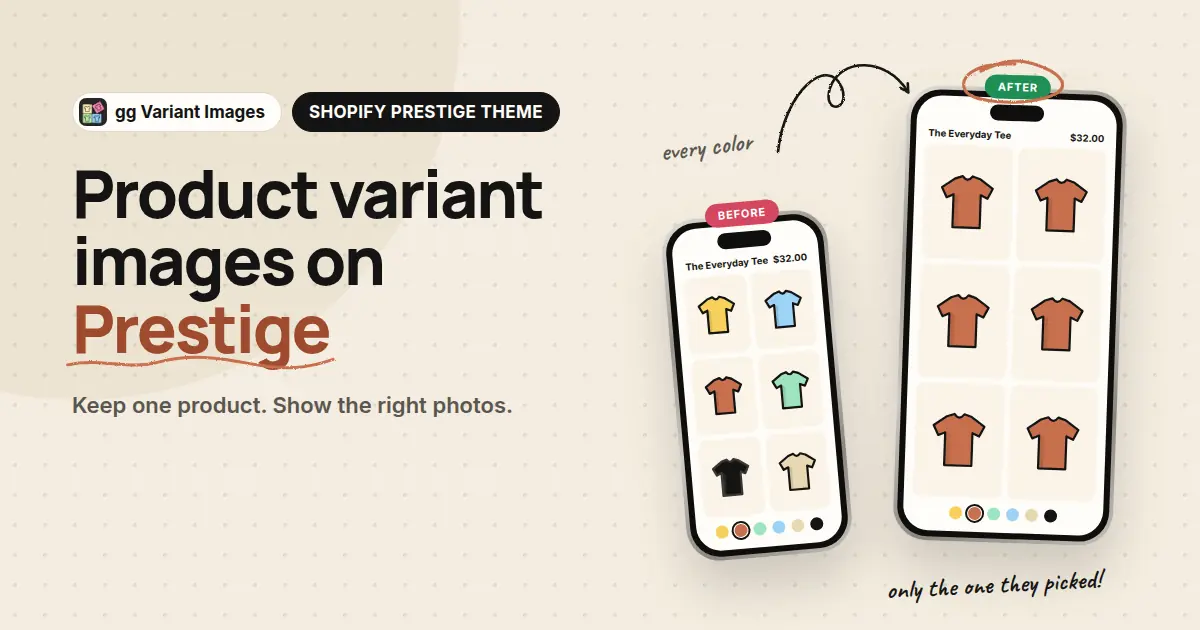
Prestige variant images on Shopify come down to one choice you make before you upload a single photo: sell each color as a variant of one product, or as a separate product of its own. Prestige supports both, and its Allure demo store uses the second. This guide covers what Prestige does when a shopper picks a color, how the one product per color setup works and what it costs you, and the cleanest way to filter photos when you keep colors as variants.
Quick answer: By default, Shopify’s Prestige theme jumps or scrolls to one featured image per variant and leaves every other color’s photos visible. To filter Prestige variant images to only the selected color without splitting products or losing alt text, use gg Variant Images (built for Prestige’s native gallery filter), or fall back to Maestrooo’s Product Variations or single-language
#color_alt-text sets.
Prestige is a premium theme by Maestrooo, made for luxury brands. Its product gallery is its own code, so tips written for Dawn do not apply to it.
What Prestige does when a shopper picks a color
Shopify lets each variant point at one image, the variant’s featured image. Prestige uses that image in one of two ways, depending on the gallery layout.
- Carousel layouts and mobile. The carousel jumps straight to the variant’s featured image. Nothing is reordered: the photo keeps its place in the gallery.
- Stacked desktop layout. When the desktop gallery shows every photo in one tall column, there is nothing to slide. Prestige smoothly scrolls the page down to the variant’s photo instead.
- Every other photo stays. The other colors’ photos remain in the gallery, the thumbnails, the mobile dots and the zoom view.
A bag in six colors with four photos each is a 24 photo gallery. On the stacked layout, picking the fifth color scrolls the shopper down the page, past the photos of the four colors before it.
Option 1: one product per color with Prestige’s product variations
Open the Le Grand Nova bag on Prestige’s Allure demo store and click a color swatch: you land on a different page. Each of its six colors is a separate product with its own photos, linked together by swatches. Maestrooo calls this feature product variations, and it is built into Prestige 7 and later.
The setup, in short:
- Create one product per color, each with only that color’s photos.
- In Settings, add two product metafield definitions: “Variation value” (single line text, the color name) and “Variation products” (a list of product references).
- In the theme editor, connect both metafields in the product section and set the option name, for example Color.
- On each product, enter its color and select every product in the group, itself included.
Maestrooo’s guide has the screencasts: Product variations / linked products.
What one product per color costs you
The gallery problem goes away, because each page only holds one color’s photos. Maestrooo’s guide lists what you give up:
- Every color is its own product. In collection and search pages, each variation shows up as an individual product, so a bag in six colors takes six spots in the grid.
- No swatches on collection pages. Shoppers cannot preview the other colors from the grid.
- No native color swatches. Product variations do not work with Shopify’s native swatches. You fill in Prestige’s color swatch config in the theme’s general settings instead.
- A new page per color. Every swatch click loads another product page, and the linked product list has to be the same on every product in the group.
For a few hero products where each color deserves its own page, this route works well. For a catalog where the colors share everything except the photos, it means a lot of duplicate products to keep in sync.
How to filter Prestige variant images on one product
If your colors share one description, one price and one listing, keep them as variants and filter out the photos that do not match the selected color. Comparing the options for Prestige variant images makes the trade-offs clear:
| Method | Hides other colors | Multi-option & multi-language | Keeps real alt text | Best for |
|---|---|---|---|---|
| Default Prestige | No (jumps or scrolls to 1 photo) | Yes | Yes | 1 photo per color |
| Prestige Product Variations | Yes (separate product per color) | Yes (manual sync per product) | Yes | Few hero items needing separate URLs |
Prestige Alt-Text Sets (#color_) | Yes | No (1 option, 1 language) | No (repurposes alt text) | Small single-language catalogs |
| gg Variant Images | Yes (gallery, dots, thumbnails, zoom) | Yes (plus AI auto-assign) | Yes | Multi-color catalogs kept on one product |
- Alt text image sets. Prestige 7 and later can hide images based on a tag like
#color_blackin each image’s alt text. It follows one option only, it does not work on stores in more than one language, and it uses up the alt text that screen readers and Google rely on. Impact has the same feature, and we walked through the setup and its limits here: change image based on variant on Impact. - gg Variant Images. Built specifically for Prestige’s gallery, gg Variant Images stores photo-to-variant assignments outside alt text and filters through Prestige’s own
scroll-carouselfilter so nothing flickers or breaks on switch.
Why Shopify shows every image in the first place, and the general fixes: Shopify variant-specific product images. The native one image per variant setup, step by step: how to add variant images on Shopify.
Filter Prestige variant images cleanly with gg Variant Images
gg Variant Images hooks directly into Prestige’s native carousel filter, so the main gallery, thumbnails, mobile dots and zoom view all update together when a shopper switches colors.
- Built for Prestige’s gallery: filters slides, thumbnails, mobile dots and lightbox zoom cleanly without editing theme files or breaking future Maestrooo updates.
- Fast assignment with AI auto-assign: sort photos by variant automatically in one click or drag and drop to set the exact order per color.
- Shared shots stay visible: leave size charts, packaging or lifestyle shots unassigned so they stay in every color’s gallery.
- Real alt text and full store compatibility: keeps your image alt text intact for SEO and screen readers, works across multiple options and multiple languages, and lets you keep Prestige’s swatches or switch to customizable color and product-photo swatches.
Two-minute setup on Prestige
- Install gg Variant Images from the Shopify App Store. The Free plan covers one product so you can test it on a live listing first.
- In the app, open Configure, pick a product and use AI auto-assign or drag photos onto each color to set the order. Leave size charts and lifestyle shots unassigned so they show for every color.
- In the Prestige theme editor, open App embeds, turn on gg Variant Images and save.
- Open the product page and switch colors to confirm only that color’s photos appear.
If you tagged images with Prestige’s #color_ alt text before, remove those tags once the app is set up, so the theme and the app are not both filtering. If your store runs a customized copy of Prestige and something looks off, send us the URL and our support makes the app work for your theme as soon as possible.
What to check on your Prestige product page
Whichever route you pick, open a product with several colors on your live store and check your Prestige variant images in these four places.
- On mobile, swipe the carousel and count the dots. Both should match the selected color.
- On desktop, check the thumbnails. On the stacked layout, pick the last color and see where the page lands.
- Open the zoom view and swipe through it. It should show the same photos as the gallery.
- Find a size chart or a lifestyle shot that should show for every color, and make sure it still does.
Frequently asked questions
Does Shopify’s Prestige theme hide other variant images automatically?
No. Out of the box, Prestige variant images work by jumping the carousel or scrolling the stacked desktop gallery to the selected variant’s featured image while keeping every other color’s photos visible. To hide non-matching photos on one product, you need Prestige’s #color_ alt-text sets or an app like gg Variant Images.
Should I use Prestige product variations or keep colors as variants?
Use Prestige product variations when each color should appear as its own card in collections and search results and you only manage a small set of hero items. Keep colors as variants on one product when they share descriptions, reviews, and inventory structure and you want cleaner Prestige variant images without maintaining duplicate product pages.
Why do Prestige alt-text image sets stop working in multiple languages?
Prestige’s built-in image set filter matches option values against tags written into each image’s alt text (such as #color_black). Because Shopify image alt text is not translated across store languages, translated option values fail to match the hardcoded tag. Using gg Variant Images avoids this completely because photo assignments are stored separately from alt text.