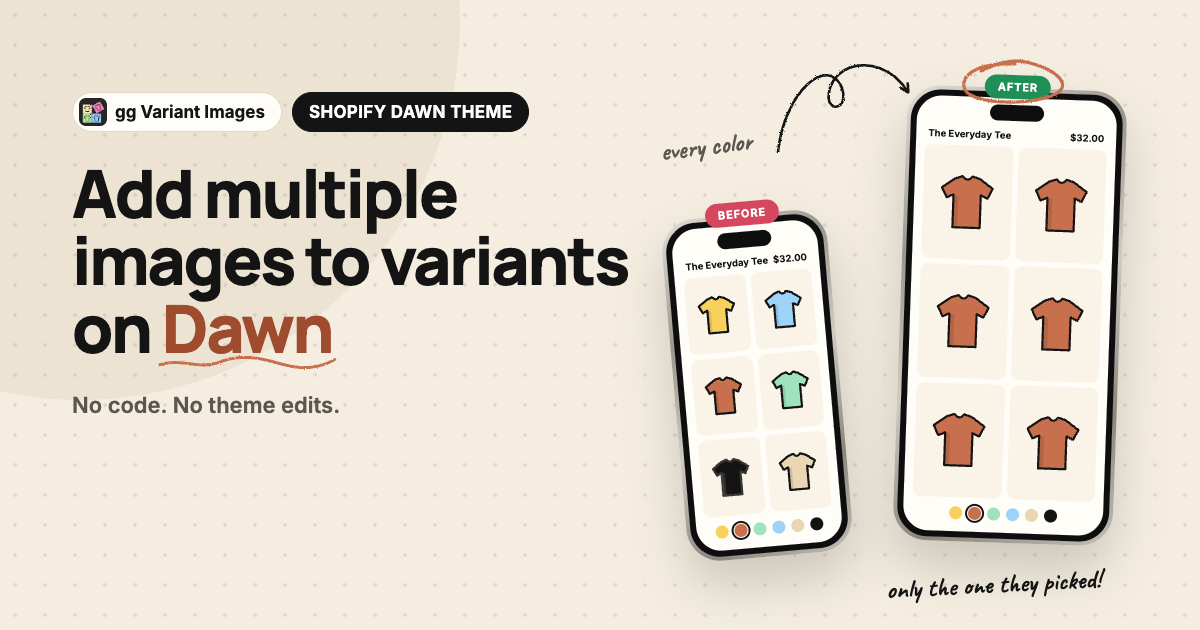
If you want to add multiple images to variants on Shopify’s Dawn theme, the first thing to know is that Dawn, like every Shopify theme, starts from one rule: each variant links to one image. A tee in four colors with three photos each has twelve photos in one gallery, and picking “Red” changes which photo comes first, not which photos are there. This guide covers what Dawn does on its own, the three ways to get a real gallery per color, and the Dawn details that make or break each one.
Dawn is Shopify’s original free reference theme, and it is still on a huge number of stores. Several newer free themes reuse its product gallery, so most of this applies to them too (list near the end).
What Dawn does when a shopper picks a variant
- One image per variant. In the product admin, each variant can point at one image. That is the only link Dawn knows about.
- The variant’s image moves to the front. On every switch, Dawn moves the selected variant’s image to the start of the gallery, and its thumbnail to the start of the thumbnail strip. Nothing is removed.
- Every other photo stays. The other colors’ photos remain in the main gallery, the thumbnails, the mobile slider and the zoom lightbox.
- Swatches. Dawn’s variant picker can show pills or a dropdown, with circle or square color swatches that come from Shopify’s category metafields. There is no swatch that shows the product photo.
So with one photo per color, Dawn behaves well. With several photos per color, the shopper sees the right first photo and then swipes straight into every other color.
Three ways to add multiple images to variants on Dawn
1. One product per color
Make Black Tee, Red Tee and Blue Tee separate products and link them with a swatch app. Each product shows only its own photos, so there is nothing to filter.
The cost: inventory, reviews and analytics are split across pages, every edit is repeated per color, and search ranking is spread thin. Worth it mainly when the colors really are different products.
2. Custom theme code
The common tutorial approach puts the color name in each image’s alt text and adds JavaScript to Dawn that hides slides whose alt text does not match the selected color.
It works on the main slider, and it costs nothing but time. The catch is everything else in the gallery (see the next section), and the fact that the code lives inside Dawn’s files: every Dawn update means re-applying and re-testing it.
3. A variant images app
You assign photos to each variant in an admin screen, and the app filters the gallery on the storefront. No code. The cost is a subscription, and the result is only as good as the app’s handling of Dawn’s gallery, which is where the next section comes in.
Dawn’s family: the same gallery under other names
Craft, Sense, Refresh, Studio, Taste, Crave, Colorblock, Ride, Origin, Publisher, Spotlight and Trade are free Shopify themes built on Dawn’s product gallery. The behavior and the details above apply to them as well. Horizon is different: it has its own gallery, covered in the Horizon guide.
Background on why Shopify shows every image, and the general fixes: Shopify variant-specific product images. The native one-image setup, step by step: how to add variant images on Shopify. Dawn itself is on the Shopify Theme Store.
Setting it up on Dawn with gg Variant Images
We build gg Variant Images, an app for route 3. It handles every point in the list above on Dawn and its family: main gallery, thumbnails, mobile slider and lightbox, with no theme file edits.
- Install gg Variant Images from the Shopify App Store. The Free plan covers one product.
- In the app, open Configure, pick a product and assign photos to each color. Drag to set the order. Leave size charts and lifestyle shots unassigned so they show for every color.
- In the Dawn theme editor, open App embeds, turn on gg Variant Images and save.
- Open the product page and switch colors.
If your store runs a customized copy of Dawn and something looks off, send us the URL and our support makes the app work for your theme as soon as possible.