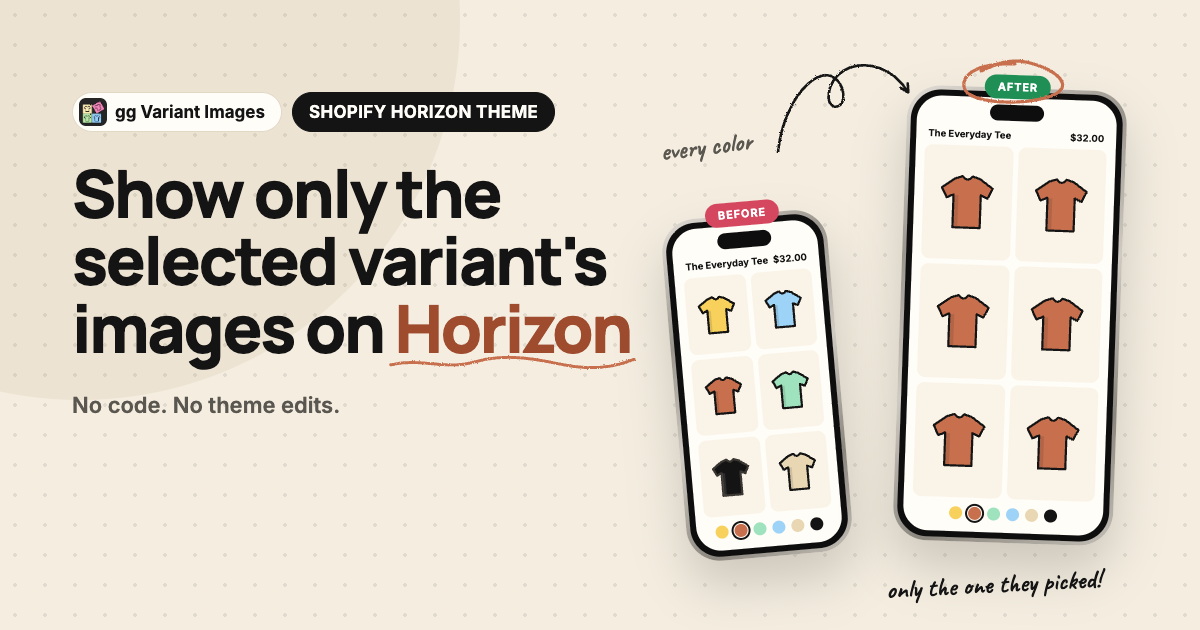
To show only selected variant images on Shopify’s Horizon theme, you need one thing Horizon does not do on its own: drop every photo that belongs to another color the moment a shopper picks one. Horizon is Shopify’s default theme for new stores. Its product gallery is fast and clean, but pick the red shirt and the gallery still holds every blue, green and black photo. Horizon jumps to the red variant’s featured image, then lets the shopper scroll straight back into the other colors.
This page shows what Horizon does out of the box, what gg Variant Images changes, and the two-minute setup.
Theme-independent background, including what Shopify does natively and the three ways to fix it, is in Shopify variant-specific product images.
What Horizon does natively
- Shopify lets you attach one image to each variant. Horizon uses it as the variant’s featured image and scrolls the gallery to it.
- Every other product image stays in the gallery and in the thumbnail strip.
- Horizon’s View Transitions re-render the whole media gallery on every variant switch, which is why older “hide the slides” scripts flicker or break on this theme.
- Color swatches come from Shopify’s category metafields: small color or pattern circles. There is no product-photo swatch, and sold-out colors are neither hidden nor crossed out.
If your products have one photo per color, native Horizon is fine. If they have three to eight photos per color, shoppers see a wall of mixed images.
How to show only selected variant images on Horizon with gg Variant Images
- Pick a color, see only that color’s photos: main gallery, thumbnails, dots and zoom view all filter together.
- Assign several images per variant by drag and drop, or let auto-assign sort them in one click.
- Shared images such as size charts or lifestyle shots stay visible for every variant.
- Optional variant picker with text, image or color swatches, square or round, with sold-out colors hidden or crossed out.
- Built specifically for Horizon’s gallery, including the View Transitions behavior above, so there is no flicker on switch.
Horizon ships with Shopify as a free theme and gets frequent updates through the Shopify Theme Store. gg Variant Images does not touch theme files, so those updates never break the filtering. It reads your per-variant image assignments from a product metafield and filters the gallery on the storefront on every switch, which is what makes it possible to show only selected variant images on Shopify without a developer.
Set it up on Horizon in two minutes
- Install gg Variant Images from the Shopify App Store. The Free plan covers one product, so you can test on a live product before paying anything.
- In the app, open Configure, pick a product, and assign images to each color. Drag to reorder. Leave size charts unassigned so they show for every variant.
- In the Shopify theme editor, open App embeds and turn on gg Variant Images. Save.
- Open the product page, switch colors. Only that color’s photos remain.
That is the whole setup to show only selected variant images on Horizon. The same assignments work if you later switch to Dawn or another theme, because they live on the product, not in the theme.
Horizon-specific notes
A few things that only matter on this theme when you show only selected variant images, learned from setting it up on live Horizon stores.
- Works with Horizon’s slideshow, grid and stacked gallery layouts.
- Works with Horizon-based themes from the Shopify theme store (the Horizon family shares the same gallery). If a Horizon fork behaves differently on your store, send us the URL and we set it up free within 72 hours.
- Horizon’s native swatches can stay on, or you can switch to the app’s swatch picker for product-photo swatches and sold-out handling. Both are a toggle, no code.
- No theme files are edited. Uninstall the app and Horizon is exactly as it was.