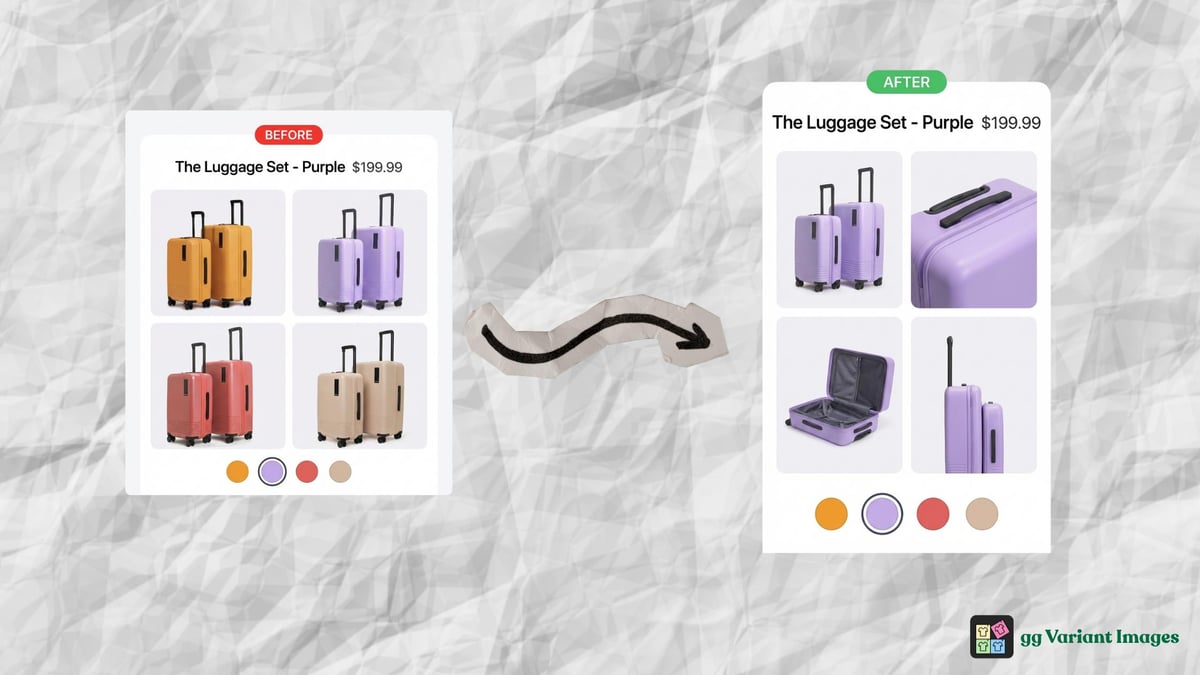
If you sell products in multiple colors, materials, or styles, you’ve probably run into this: a customer selects “Black” and the page still shows the red version front and center. Getting Shopify variant-specific product images right is one of the most overlooked conversion fixes. And it’s not something Shopify handles out of the box.
This post walks you through what Shopify variant-specific product images actually are, why Shopify’s native setup falls short, and how to get it working properly without touching any code.
What “variant-specific product images” actually means
When merchants say variant-specific images, they usually mean one of two things.
The first is a featured image per variant. Shopify supports this natively. You go into a variant in the product editor, assign an image, and that image shows when the customer selects that option. It’s useful, but limited.
The second is a full image gallery per variant. This means when someone selects Black, they see 3-4 images of the black version. When they switch to Red, the gallery swaps to show 3-4 different images. Only the red ones. No black images bleeding through.
That second thing is what most merchants actually want. And that’s what Shopify doesn’t support natively.
The gap in Shopify’s native variant image handling
Here’s exactly what Shopify gives you out of the box:
- One featured image per variant (shows as the main image on selection)
- A shared product gallery that doesn’t change based on variant
So if your product has 12 images total (3 per color, 4 colors), Shopify will show all 12 in the gallery regardless of which color the customer picks. The featured image will swap, but the rest of the gallery stays the same.
For simple products, this is fine. For anything with meaningful visual differences between variants, it creates a confusing browsing experience. Customers see images that don’t match what they selected. That creates doubt, and doubt kills conversions.
Three ways to fix Shopify variant-specific product images
1. Create separate products per variant
Some merchants split each color into its own product (Black Pump, Red Pump, Yellow Pump) and use a color swatch app to link them together visually.
This works, but it has real costs. Your inventory gets split across multiple product pages. SEO gets diluted. Analytics get fragmented. And the maintenance overhead adds up every time you update a product.
Not recommended unless you have a strong reason for it.
2. Custom theme code
A developer can modify your theme’s product template to listen for variant selection and show/hide images accordingly. This gives you full control and zero app overhead.
The downside: it’s custom code on a custom theme. Every time Shopify or your theme updates, something can break. You’re on the hook for maintenance. And the initial build cost isn’t trivial.
Good option if you have an in-house developer. Not practical for most merchants.
3. Use an app
Apps handle the complexity for you. You assign images to each variant through a simple UI, and the app handles the storefront filtering. No code, no maintenance, no Shopify expertise required.
This is what most merchants end up doing, and for good reason. It works, it’s fast to set up, and it keeps working when Shopify updates things under the hood.
Setting up Shopify variant-specific product images with gg Variant Images
gg Variant Images is free to install and takes under 10 minutes to configure for most products.
Here’s how it works:
1. Install the app and enable it
After installing, go to the Dashboard and toggle the app on. This activates the theme embed that powers the storefront filtering.
2. Go to Configure Products and select a product
You’ll see your product’s variants grouped by option (Color, Material, Size, whatever you’re assigning by). Each variant gets its own row.
3. Assign images to each variant
Click “Assign images” next to a variant. A modal opens showing all your product images. Select the ones that belong to that variant. You can also drag to reorder them.
Any images you don’t assign to a specific variant become common images. They show for all variants automatically. Useful for lifestyle shots or packaging images that apply regardless of color.
4. Save
That’s it. The storefront updates immediately. When a customer selects Black, they see the Black images plus any common images. Switch to Red, the gallery swaps.
No code required. No theme customization needed.
Does it work with your theme? (Yes, even for shopify variant-specific product images)
gg Variant Images works with the most popular Shopify themes including Dawn, Craft, Horizon, Sense, Refresh, and most free themes from the Shopify Theme Store.
If you’re on a custom or premium theme and it isn’t working correctly, reach out and we’ll add support for your theme within 48 hours. Just send us the theme name and we’ll handle it.
Common questions
Do I need to know how to code?
No. The entire setup happens through a point-and-click UI in your Shopify admin. No liquid, no JavaScript, nothing.
Will this slow down my store?
No meaningful impact. The app uses a lightweight theme extension that only activates on product pages. It reads the assignments you’ve saved and filters the gallery on variant selection.
What happens to images I don’t assign to any variant?
They become common images and show for all variants. This is intentional. It’s useful for images that aren’t variant-specific, like a brand lifestyle shot or packaging detail, but still belong on the product page.
Does it work if a customer hasn’t selected a variant yet?
Yes. Before any selection, the page shows the default variant’s images (whichever variant Shopify loads first). Once a customer selects a different variant, the gallery updates.
Is it actually free?
Yes. Free to install, no credit card required.
If you’re selling products where variant appearance matters, getting this right is worth the 10 minutes. Customers shouldn’t have to second-guess whether the image they’re looking at matches what they’re about to buy.
Getting Shopify variant-specific product images right is one of the highest-ROI changes you can make to a product page. Customers shouldn’t have to second-guess whether the image they’re looking at matches what they’re about to buy.