What Are Variant Images on Shopify?
Learning how to add variant images on Shopify is one of the highest-impact changes you can make to a product page. When a customer selects a color or style, they expect to see photos of that exact variant, not a gallery packed with every color you carry. Variant images make this possible. They let you control which images appear based on the option a customer picks.
This is the guide for Shopify multiple images per variant: the built-in one-image method first, then the app method for a full gallery per variant that shows only the selected color’s photos. Related: why Shopify shows every image and what “show only selected variant images” means, and what to do when the variant image does not change at all.
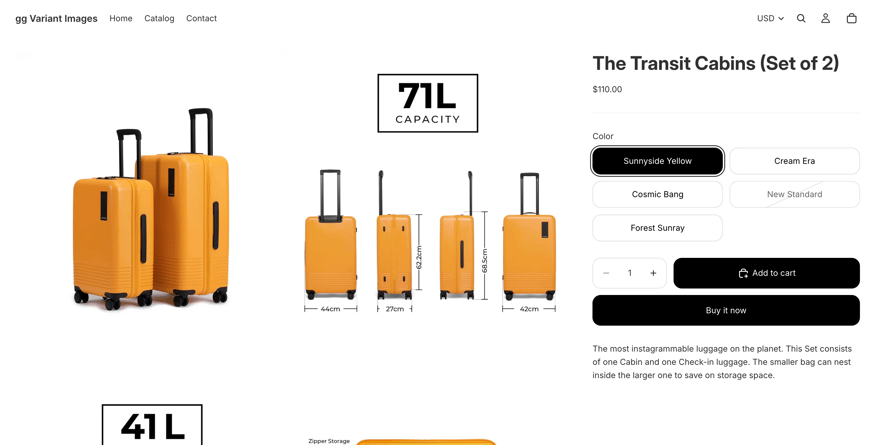
Pick “Yellow” → see yellow product photos. Pick “Purple” → see purple photos. Simple in theory, surprisingly tricky in practice, especially if you need more than one image per variant.
In this guide you’ll learn two ways to add variant images on Shopify: the free built-in method, and the app-based method that gives you full control.
Method 1: Native Shopify Variant Images (Built-In)
Shopify includes a basic way to link one featured image to each variant. Here’s how to set it up.
Step 1: Open Your Product in the Shopify Admin
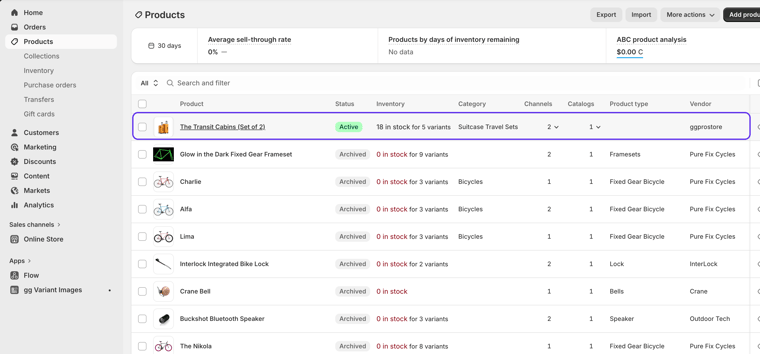
Go to Products in your Shopify admin and click the product you want to configure.
Step 2: Scroll to the Variants Section
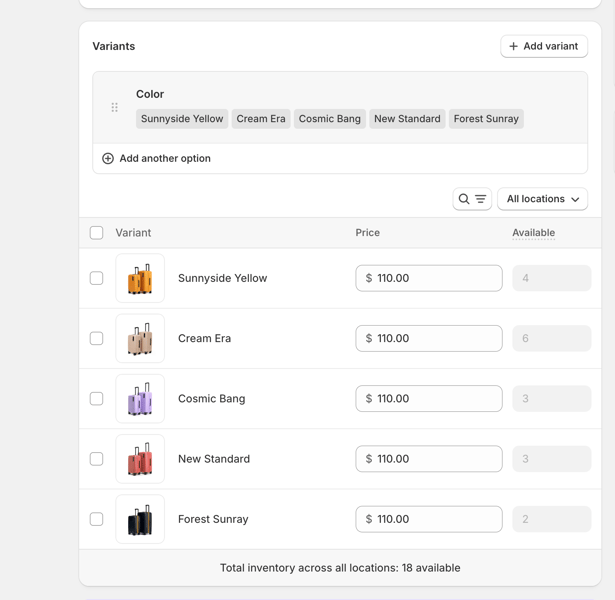
On the product edit page, scroll down until you see all your variants listed, for example, Yellow, Purple.
Step 3: Assign an Image to the Variant
You can click the variant image tile and select the image you want Shopify to show when a customer picks this variant.
Step 4: Repeat for Every Variant
Do the same for each remaining variant, Red, Green, and so on. Save the product when you’re done.
The Big Limitation of the Native Method
Shopify’s built-in feature only assigns one image per variant. If your black product has three angles, flat lay, on-model, and detail shot, only one can be tied to the “Yellow” variant. The others show up regardless of which variant is selected. If you need to add variant images on Shopify with multiple photos per option, the native method won’t cut it.
For single-image-per-variant products this works fine. For everything else, you need an app.
For the full picture of what Shopify does and does not do with per-variant galleries, read Shopify variant-specific product images.
Method 2: Add Multiple Variant Images with an App
If you need multiple images per variant, a custom image order per variant, or shared “common” images that show across all variants, you need a dedicated Shopify app.
gg Variant Images is built specifically for this. The Free plan covers one product, paid plans start at $9.99 a month, and it works with all major Shopify themes, and lets you assign unlimited images per variant, with drag-and-drop ordering.
Step 1: Install gg Variant Images
Install the app from the Shopify App Store. Once installed, open it from your Shopify admin sidebar.
Step 2: Go to Configure Products
Click Configure Products in the sidebar. You’ll see a list of your products. Click into the one you want to set up.
Step 3: Choose Your Option Type
At the top of the product configuration screen, select which option you’re assigning images by, Color, Size, Material, or whichever option is most visual for your product.
Step 4: Assign Images to Each Variant Value
You’ll see a row for each option value (Yellow, Purple, Cream, etc.). Click Assign images on a row, then pick the images from your product gallery that belong to that variant. You can select as many as you like.
Step 5: Set the Image Order
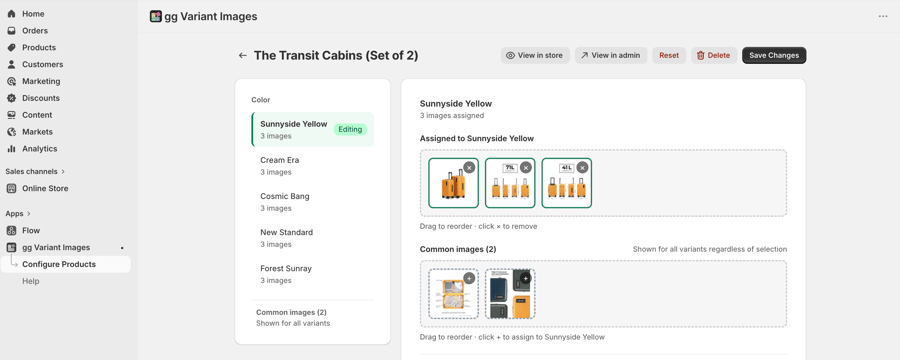
Inside the same modal, switch to the Order images tab. Drag and drop your selected images into the exact order you want them to appear on the product page for that variant.
Step 6: Leave Shared Images Unassigned
Any image you don’t assign to a specific variant automatically becomes a “common” image, it shows up for every variant. This is perfect for lifestyle shots, size guides, and brand imagery that applies to the whole product.
Step 7: Save Your Configuration
Hit Save. The app stores your assignments and reorders your product’s media in Shopify so changes take effect immediately, no manual theme editing needed.
Step 8: Test It on Your Storefront
Open your product page and switch between variants. Each variant should show only its assigned images plus the common ones.
Native Shopify vs. gg Variant Images: Which Should You Use?
| Native Shopify | gg Variant Images | |
|---|---|---|
| Cost | Free | Free plan for 1 product, then from $9.99/mo |
| Images per variant | 1 | Unlimited |
| Custom image order | No | Yes |
| Common/shared images | No | Yes |
| Works with all themes | Yes | Yes (Dawn, Horizon, Craft + more) |
If you only need one image per variant and your catalog is simple, the native method is fine. If you need multiple images, ordering control, or common images, use an app. Both are free, so there’s no reason to settle for the limited version.
Final Thoughts
Variant images are one of those details that feel small but have a measurable impact on conversions. When customers see exactly what they’re buying, without wading through photos of colors they didn’t pick, they’re more likely to add to cart.
Shopify’s native feature gets you halfway there. For full control over how to add variant images on Shopify with multiple images, custom order, and shared common images, gg Variant Images picks up where Shopify leaves off, and it’s completely free.
Related: Shopify variant image not changing · best Shopify apps for clothing stores · Horizon theme guide