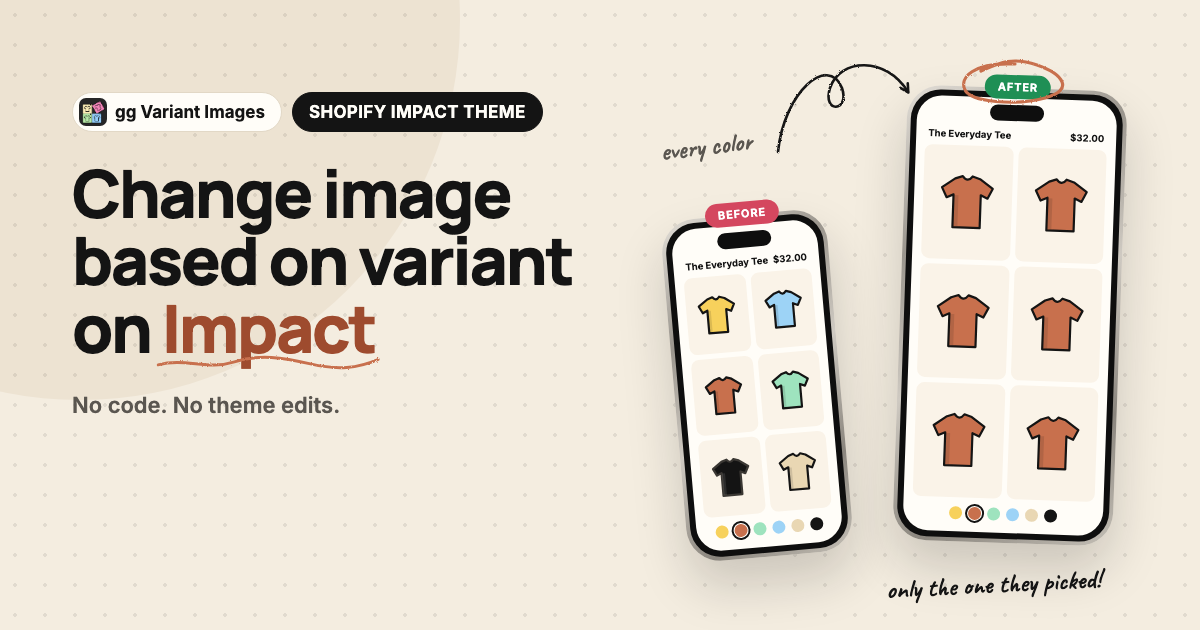
If you want to change image based on variant on Shopify’s Impact theme, start with how Shopify itself works: each variant links to one image. A pair of headphones in four colors with four photos each has sixteen photos in one gallery, and picking “Silver” only decides which of the sixteen the gallery jumps to. This guide covers what Impact does on its own, the image set feature Impact has built in, where that feature stops, and the Impact gallery details to check whichever way you go.
Impact is a premium theme by Maestrooo, built for bold entertainment and audio brands. Its gallery is its own code, so tutorials written for Dawn do not apply to it.
What Impact does when a shopper picks a variant
- One image per variant. In the product admin, each variant can point at one image. That is the variant’s featured image.
- The gallery jumps to that image. On every switch, Impact scrolls the carousel to the variant’s featured image and highlights its thumbnail. Unlike Dawn, it does not move the image to the front. The photo keeps its place in the gallery.
- Every other photo stays. All other colors’ photos remain in the carousel, the thumbnails, the mobile dots and the zoom view.
So with one photo per color, Impact behaves well. With several photos per color, shoppers land on the right photo and then scroll straight into the other colors.
Change image based on variant with Impact’s built-in image sets
Impact is one of the few themes with a native answer. Maestrooo calls it “Variant images set”: you tag each image through its alt text, and Impact hides the images that do not match the selected value.
- Pick the option that drives the photos, usually Color.
- In the product admin, open each image and set its alt text to
#plus the option name, an underscore and the value, for example#color_blackor#color_deep blue. - Leave the alt text without a
#tag on images that should show for every color.
Impact works out the hidden images on the server and updates the carousel, thumbnails and dots on every switch. Maestrooo’s guide has screenshots: Variant images set.
Where the alt text method stops
Maestrooo lists these limits in their own guide, and they are worth weighing before you tag a whole catalog.
- Alt text loses its real job. Alt text is what screen readers announce and what Google reads for image search.
#color_blackhelps neither. - One option only. Image sets follow a single option. A product that needs photos per color and per material cannot be set up.
- No multiple languages. Alt text is not translatable, so the feature does not work on stores that sell in more than one language.
- Manual, per image. Every image on every product is typed by hand, and a typo like
#colour_blacksilently shows the photo for every color.
For a small catalog in one language, the built-in feature is a fine choice. Past that, the usual routes are one product per color (linked with Impact’s product variations feature) or a variant images app that stores the assignments outside the alt text.
Background on why Shopify shows every image, and the general fixes: Shopify variant-specific product images. The native one-image setup, step by step: how to add variant images on Shopify. Running Dawn instead: add multiple images to variants on Dawn.
Setting it up on Impact with gg Variant Images
We build gg Variant Images, a variant images app. On Impact it filters the carousel, thumbnails, mobile dots and zoom view, keeps your alt text free for accessibility and SEO, works with more than one option and with any number of languages, and needs no theme file edits.
- Install gg Variant Images from the Shopify App Store. The Free plan covers one product.
- In the app, open Configure, pick a product and assign photos to each color. Drag to set the order. Leave size charts and lifestyle shots unassigned so they show for every color.
- In the Impact theme editor, open App embeds, turn on gg Variant Images and save.
- Open the product page and switch colors.
If you used Impact’s #color_ alt tags before, remove them once the app is set up, so the theme and the app are not both filtering.
If your store runs a customized copy of Impact and something looks off, send us the URL and our support makes the app work for your theme as soon as possible.